
View Your Profile on the ISA Website
Whether you are an ISA member or want to view your certified arborist record, your account is accessible online on the ISA website. Although the site is in English, you can translate it using your browser's translation option. We have prepared this small tutorial to help you navigate the site without hassle. At the end, you will also find information on how to set your browser to translate the pages you visit into the language of your choice.
Access the ISA Website
Log In
In the top right corner, click on "My ISA" and select the "Log In" option

You will arrive at the screen to log into your account.
If you are a member or a certified arborist, you already have an account. Enter your email address (Email Address) and your password if you know it.
If you have forgotten your password, you can click on "Recover password"
As a member or certified arborist, an account was automatically created when you registered. The default username is your email. If you are accessing it for the first time, you will need to reset your password by clicking on "Recover password".
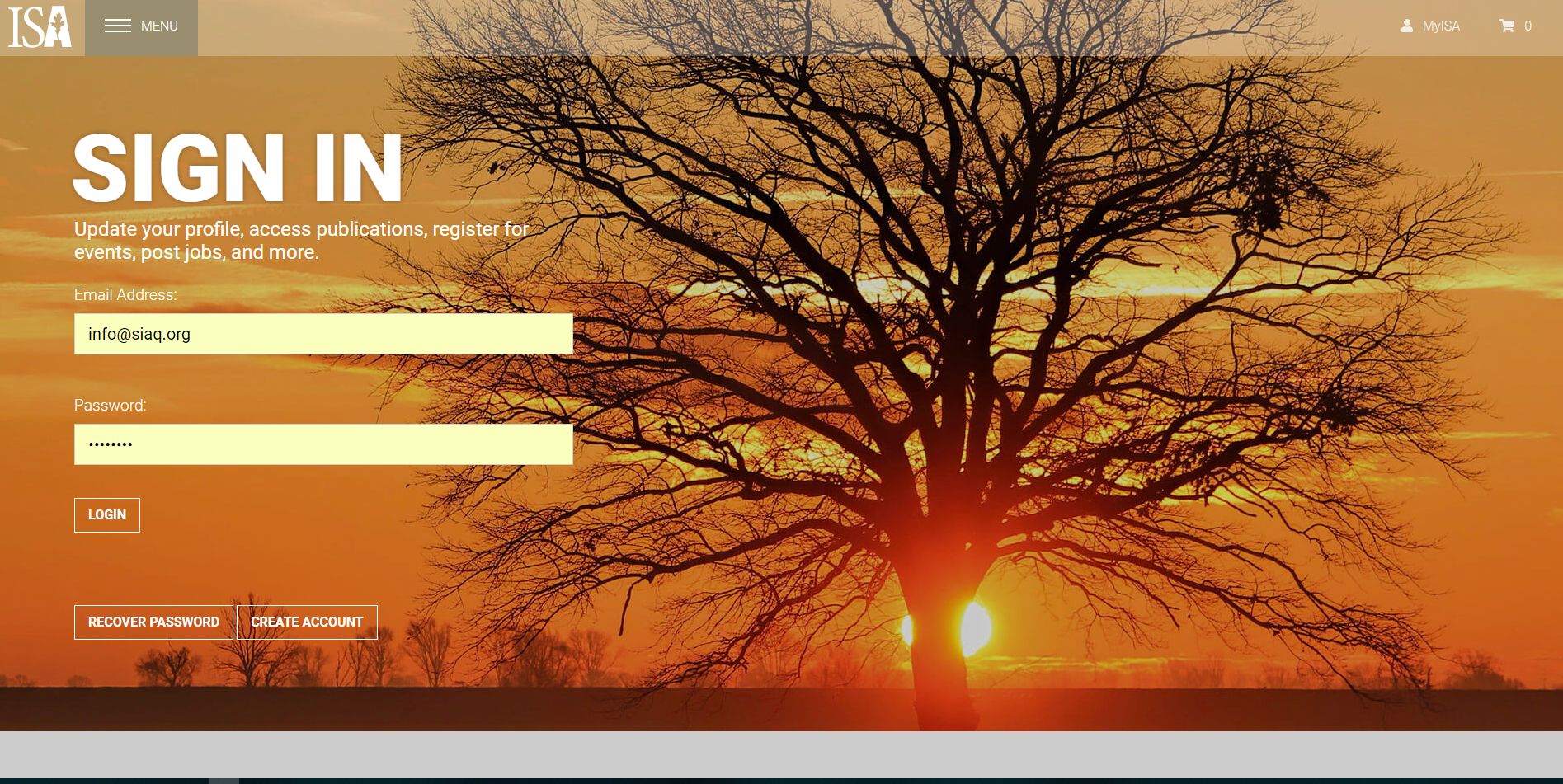
For the "Create Account" option, you will be redirected to a page that gives you the option to recover your password or create a new account. You are offered four options. Choose the last one to create a new account. However, you must be sure you don't already have an account to avoid duplicating your information. In the middle of the screen, click on the "Create a new account" link
You will now be redirected to a form where you will need to enter all your information. You will need your CSID number (XXXXXX) and your certification number QU-XXXXA. Your account will then need to be validated by ISA. This operation can take from 24 to 48 hours.
Your Account
Once logged in, you will be redirected to your dashboard (My Dashboard).
This page displays your general information. You will be able to see your membership status, the status of your certification, the total accumulated CFC (CEU), and much more.
All sections are accessible from the left-hand frame.

To access your certification information, you must log in to the Credential Portal. There you will find everything about your accreditations, including access to your digital badge and your CFC transcript, etc.
To access it, click on "ISA Credentialing" in the grey box on the left of the screen.
You may need to log in again because you will be redirected to the new platform. If this is the case, log in again.
You will arrive at the screen below, your brand new dashboard.
If you wish to navigate in French, select the display language in the green box on the left.


By scrolling from top to bottom, you will see your accreditations (My Credentials).
The information you will find there:
- The status of your certification or accreditation
- The start date
- The expiration date
- Your electronic certificate
- The status of your CFCs (for certification only)
- The link to your CFC history
If you click on "View History," you will be redirected to the following image.
To view the summary of the CFC, you must click on the "View Summary" button on the right of the screen, around the middle.


You will be in the summary of your CFC file and will have access to various documents. This section still needs to be enhanced. Some links may not be available.
To see the details of your CFC, click on the "30 Arborist CEUs" button on the left frame.
You will then get the details of all the accumulated CFCs in the current period as well as the total for each.
It is your responsibility to ensure that the credits are correctly recorded in your account. When you apply for CFCs, a delay of 4 to 6 weeks may sometimes be necessary.

Access Arborist News and Arboriculture & Urban Forestry Publications
Once logged into your account, click on the menu lines in the top left corner.
Select Publications then click on the journal you wish to view.
You will be redirected to the journal page. You can choose the latest edition of the journal or browse through the archives.
Then click the FULL ISSUE button to open the electronic version of the journal. It is not possible to download the current year's journals. However, some archived issues can be downloaded to your computer in PDF format.
Did you know that your browser offers the option to translate pages?
Indeed, whether you're using Google Chrome or Firefox, you can use extensions or add-ons that allow you to easily translate all non-French pages you visit. All content will be translated by an automated system. Although the translation is not always optimal, it will still allow you to easily navigate your favourite pages.
Procedure in Google Chrome:
- In Chrome, at the top right, click on the three small vertical dots and choose the "Settings" option
- At the very bottom of the list, click on "Advanced"
- In the "Languages" section, click on "Languages"
- Check "Offer to translate pages that are written in a language I don't know".
Procedure in Firefox:
- In the Firefox menu (top right corner), choose "Add-ons"
- In the search space at the top right, search for S3.Google translator (S3.Translator).
- Click on the extension page to open it then click on "Add to Firefox"
- Restart your Firefox browser to complete the installation of the extension. You can then customize it according to your needs.
Access the questionnaires to earn Continuing Education Credits (CEC) on the ISA website
As a certified arborist of the ISA, you are required to accumulate 30 continuing education credits per period. There are many ways to accumulate CECs. One of them is to read an article published in ISA journals like "Arborist News" and "Arboriculture & Urban Forestry" and answer a questionnaire. ISA members have free access to the journals and questionnaires from the past year. If you are not an ISA member, you can still access these questionnaires by purchasing them from the ISA online store. A member can thus easily accumulate numerous credits during their certification period. With these two journals, you have the potential for 12 CECs per year.
The procedure is quite simple... you read the text published in the journal, add the questionnaire to your shopping cart (free for members) and answer the questionnaire. You can answer the questionnaire as many times as necessary until you achieve the passing score of 16 correct answers out of 20 or 80%.
Access the ISA website
Log in to your account on the ISA website www.isa-arbor.com.
If you already have an account, enter your email address (Email Address) and your password (Password).
If you do not yet have an account or if you have forgotten how to log in, check the Certified Arborist Profile Tutorial.
Your account
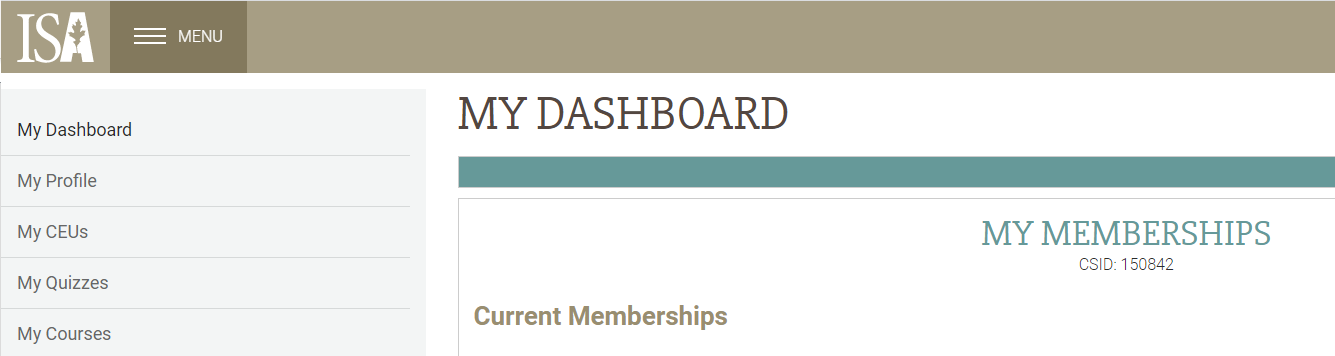
Once logged in, your dashboard (My Dashboard) will display.
Click on the menu located at the top left.
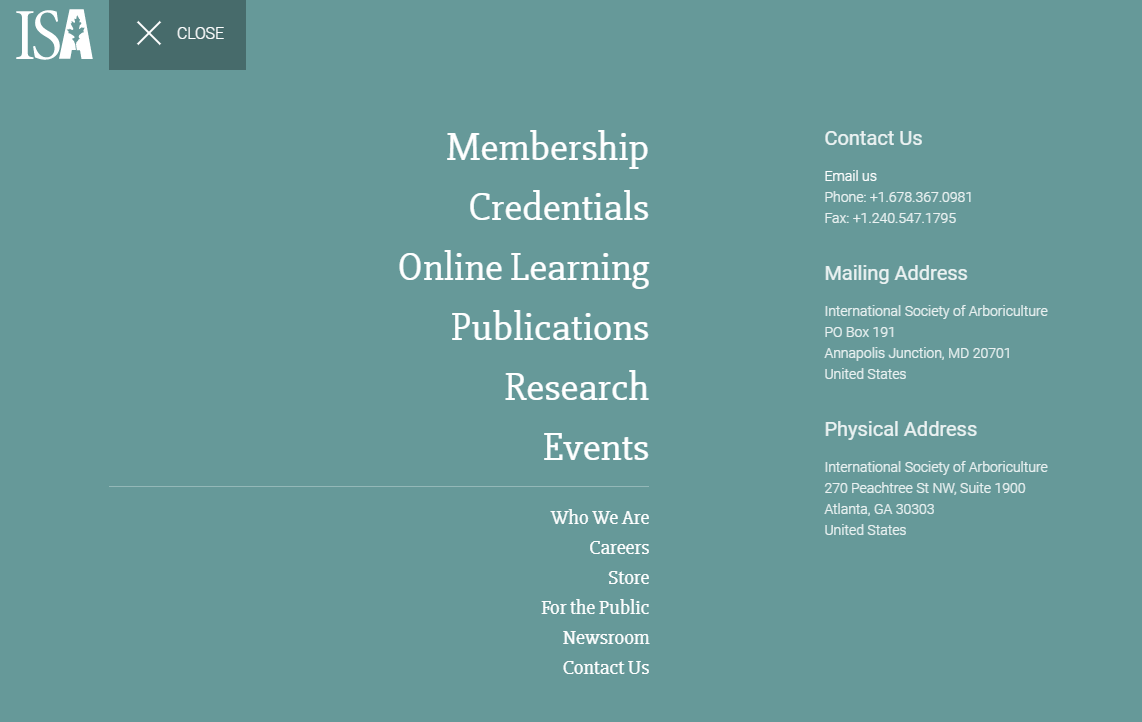
The menu screen will display (teal screen). Click on the Publications section
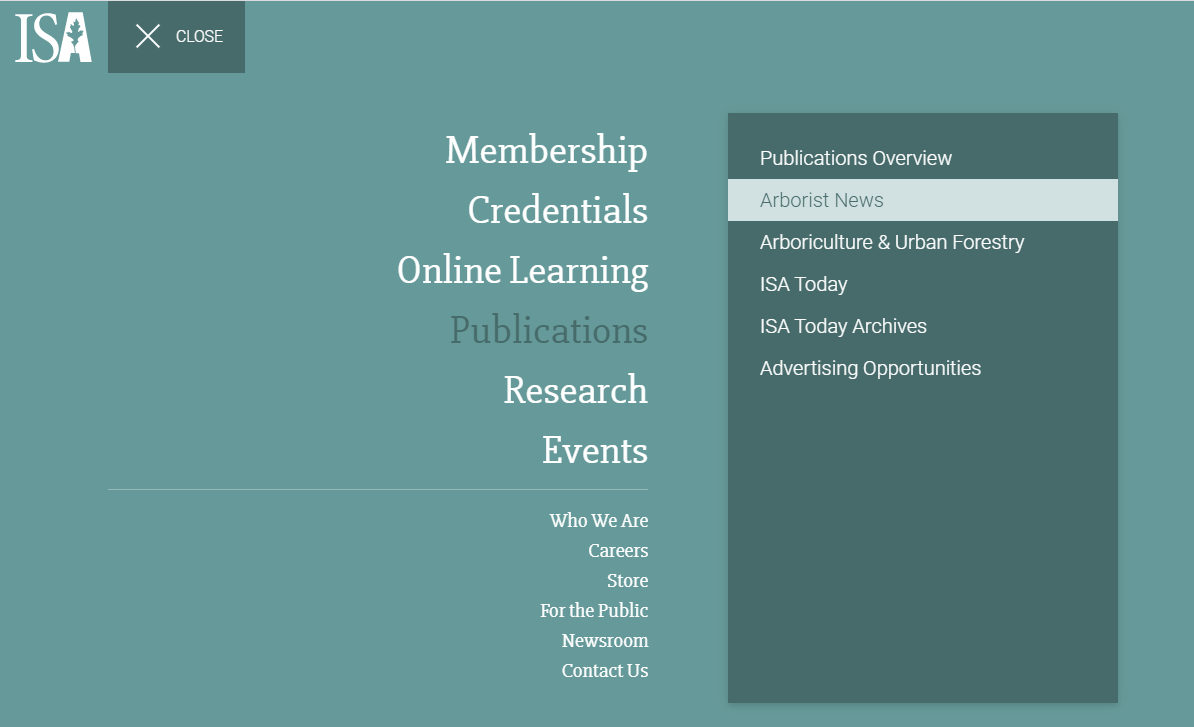
Then click on the journal you want to view. CEC texts are written in each journal published by ISA, which are "Arborist News" and "Arboriculture & Urban Forestry". In this example, we will choose the journal "Arborist News".
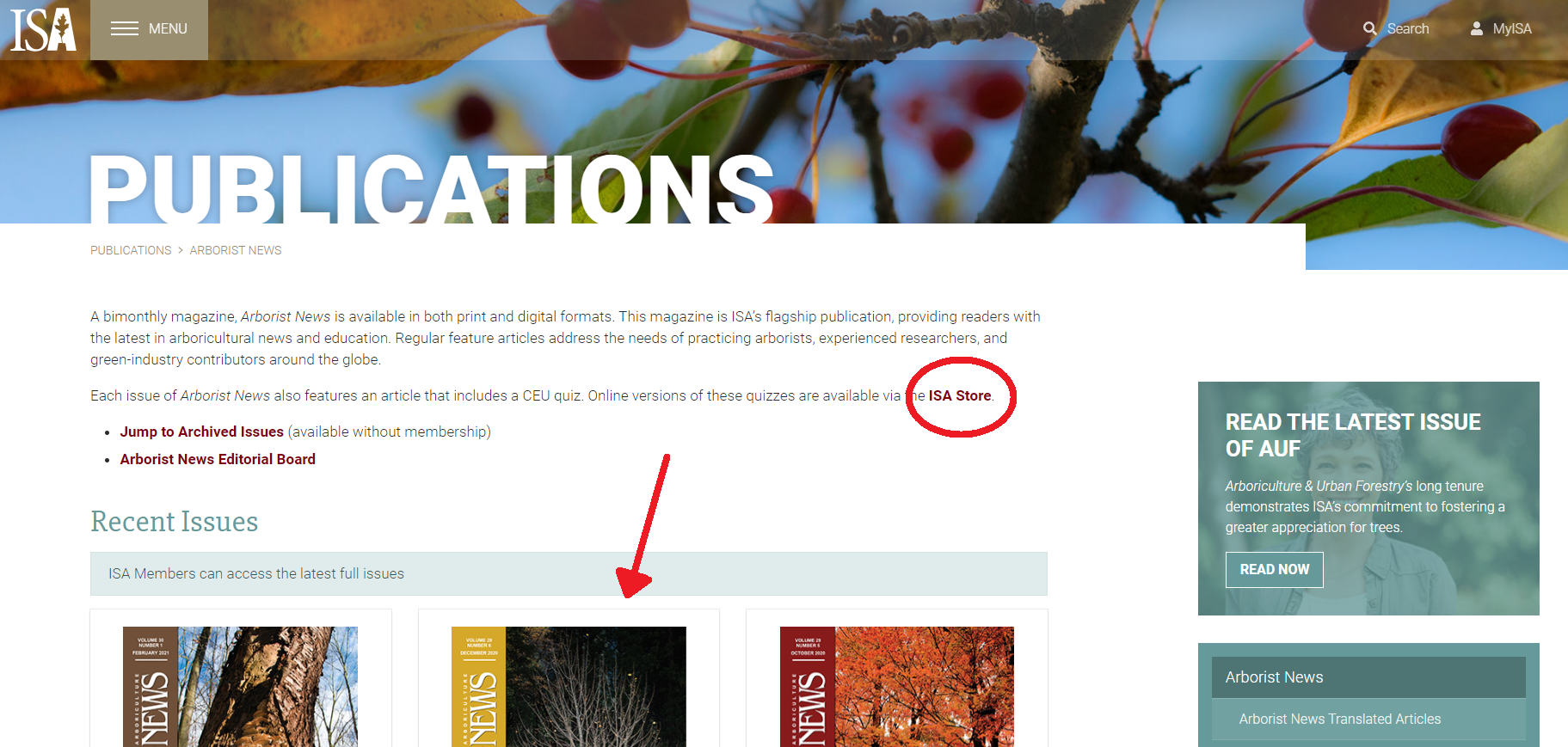
You'll arrive at the screen below where you can click on the issue of the journal you wish to view. To access the online journal, just click on the image of the issue you wish to view. (See red arrow on the image below). The journal will display and you can browse it. The CEC opportunities are
To access the CEC questionnaires, you need to click on ISA Store (see red circle on the image)
How to find the text offering CEC opportunities
The text is always identified by the certification logo.
In the Arborist News journal, there is a section title called "Continuing Education Unit" at the top of the page.
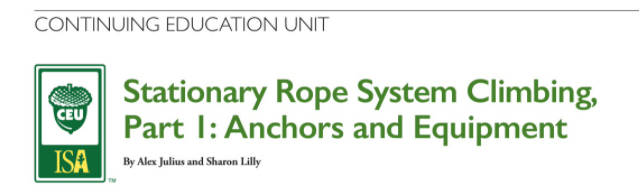
In the Arboriculture & Urban Forestry journal, the text is identified by the certification logo. Only this text will allow you to earn CECs.